Absence settings allow you to create, configure, and manage absence reason types and absence types.
What's the difference between absence reason types and absence types?
Absence reason types are created to group absence types in some reports, and in certain payroll systems, absence reason types determine where a transaction will end up in the payroll file.
Absence types allow you to specify whether an absence will generate a salary (but not which pay type) for an employee and whether it will be considered as time worked. You can configure whether the absence type will be considered as sickness, leave, holiday, or another type of absence.
If your absence type is considered as part of the absence reason type “Sickness” or “Permission” where the connected salary types have the setting Generate additional salary types ticked in, the salary types for sick-UT and permission-UT will be generated instead of the “regular” UT salary types.
Manage absence reason types
Add absence reason types
Before you create absence reasons, you need to create absence reason types. Navigate to Account settings > Absence management > Absence settings > Manage reason types.
The three dots menu on the absence types page displays Absence reason types and Day count absence groups
Give your absence reason type a name.
Select whether the absence should be considered as sickness, permission, or vacation (not mandatory).
Select whether it should be salary-based (not mandatory).
Select whether it should be counted as worked hours (not mandatory).
Count as resting time for schedule compliance.
See whether it should be counted as rest time towards the rest validations in schedule Compliance (not mandatory).
Click Save when you're finished, and your new absence reason type will display in the list.
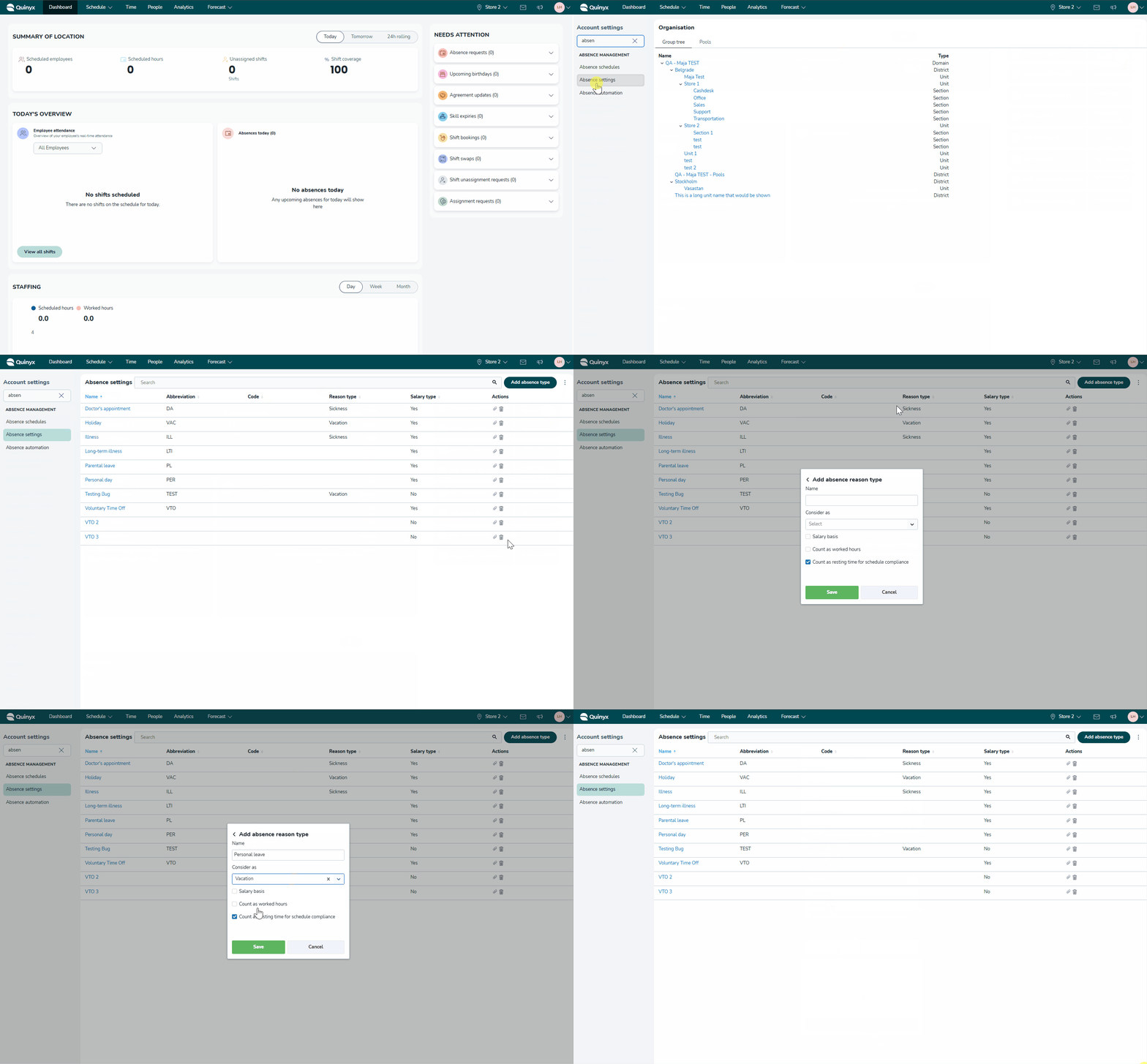
If you made the absence reason type count as worked hours, the absence reason type will count as scheduled hours as well. If an absence reason type is configured as resting time for schedule compliance, all rest rules will count absences of that type as rest when validating the configured roles.
Edit absence reason types
To edit an existing absence reason type, click on the pen icon next to the existing absence reason type you want to edit. A new dialogue box will appear. Edit the information you want to change, and click Save when you're finished.
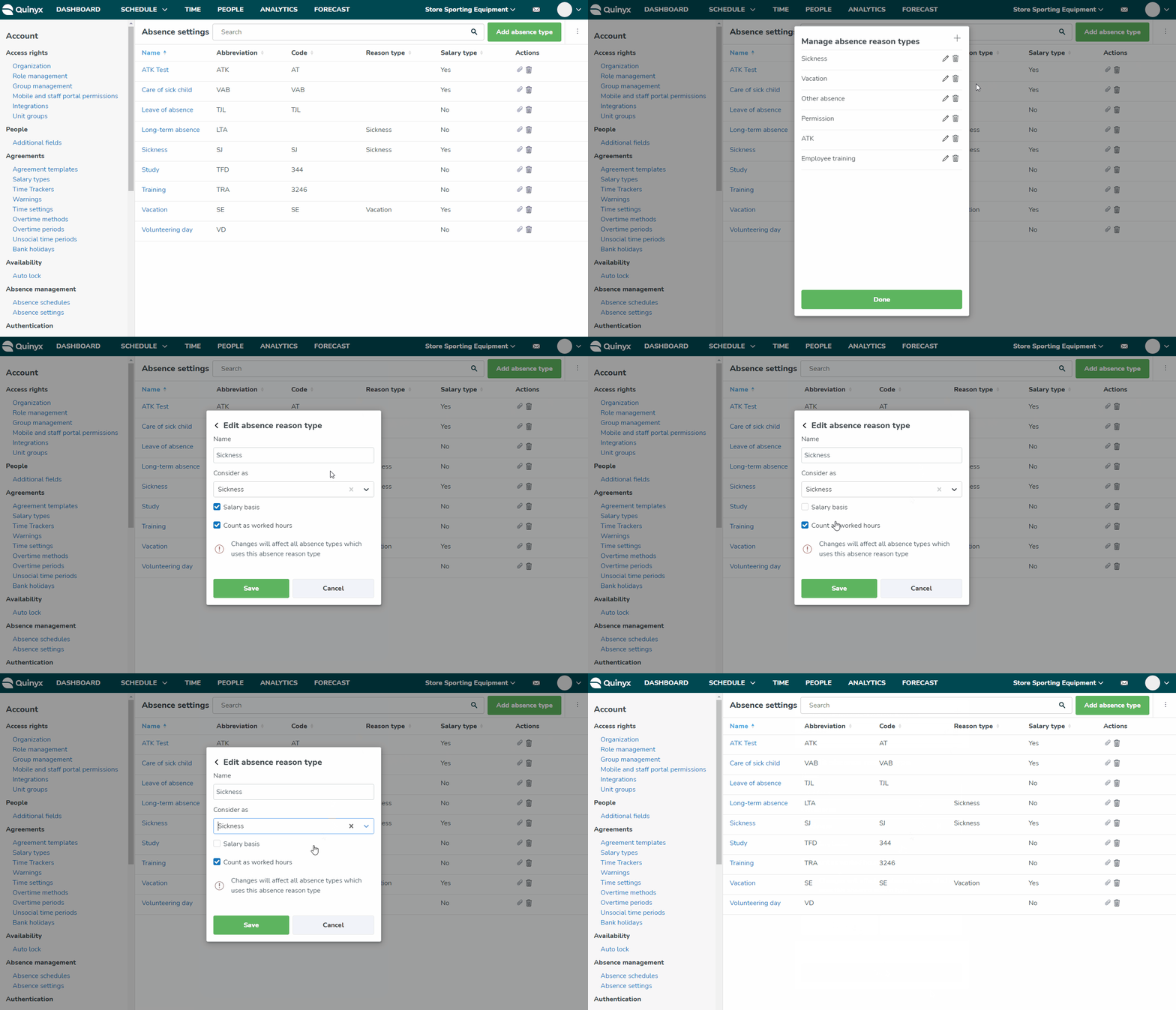
If you make changes to an absence reason type, all absence types using the changed absence reason type will be affected.
Delete absence reason type
Click on the trash can icon next to the absence reason type you want to delete. A confirmation message will appear.
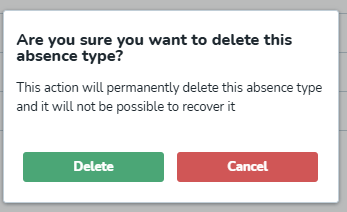
Click Delete if you want to proceed with deleting the absence reason type.
If the absence reason type is associated with an absence type, it's not possible to delete it. Disconnect the absence reason type from the absence type to proceed with the deletion.
Manage Day count absence groups
Add Day count absence groups
You can create and link absence types to day count absence groups in order to count towards a single day count between multiple absence types. This is useful if you are using different absence calculations with limits on the number of days you can take the specific absence.
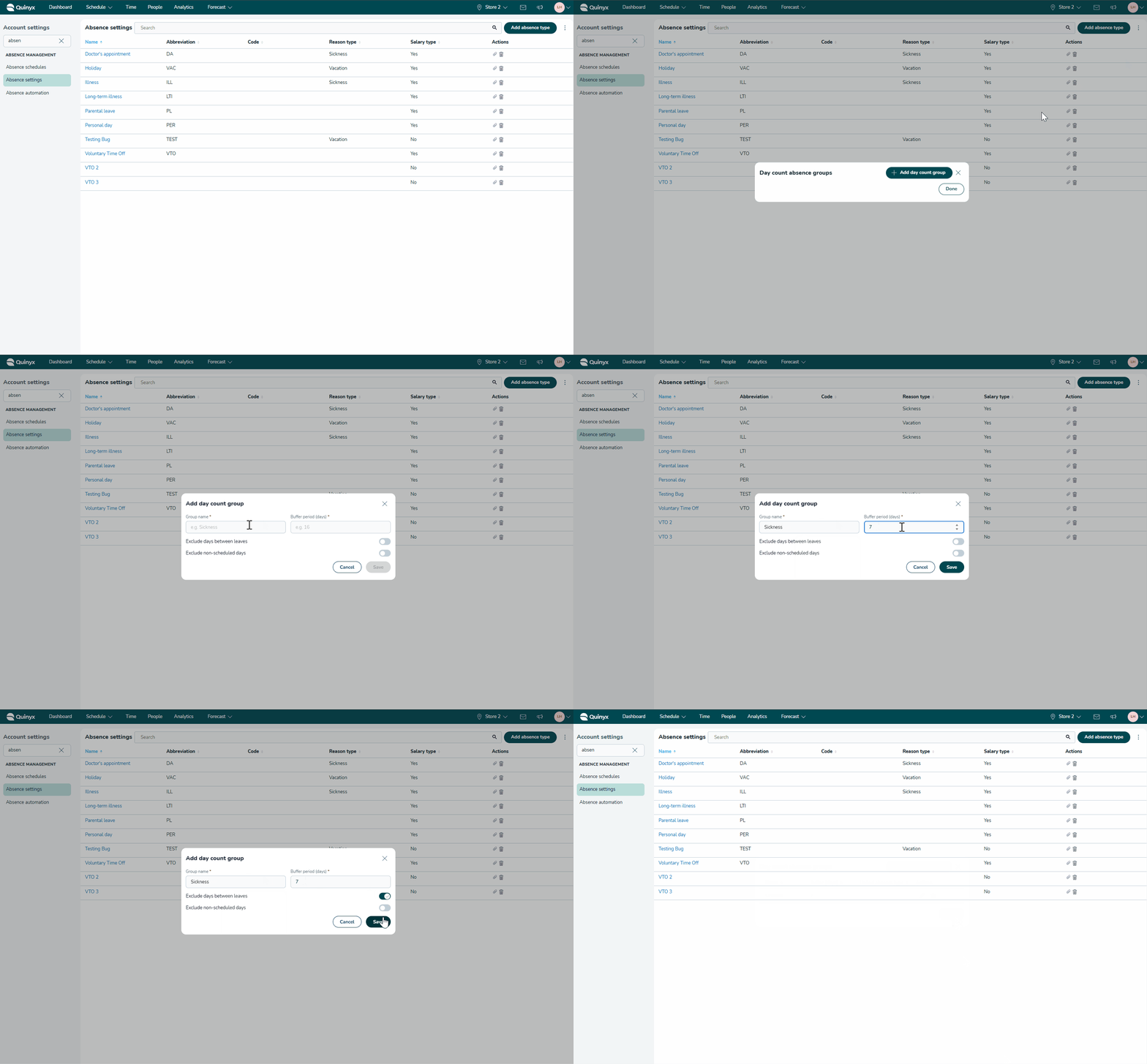
The three dots menu on the absence types page displays Day count absence groups.
+
Select the ellipse icon, and then Day count absence groups.
Select the Add day count gourp button.
Give the Day count absence group a name and a bugger period in days.
Choose whether you want to exclude days between leaves and non-scheduled days.
Select Save.
Edit Day count absence groups
Select the ellipse icon, and then Day count absence groups.
Select the pen icon under Actions for the day count absence group you want to edit.
Change the details that needs to be modified.
Select Save.